Diagrams in Backstage
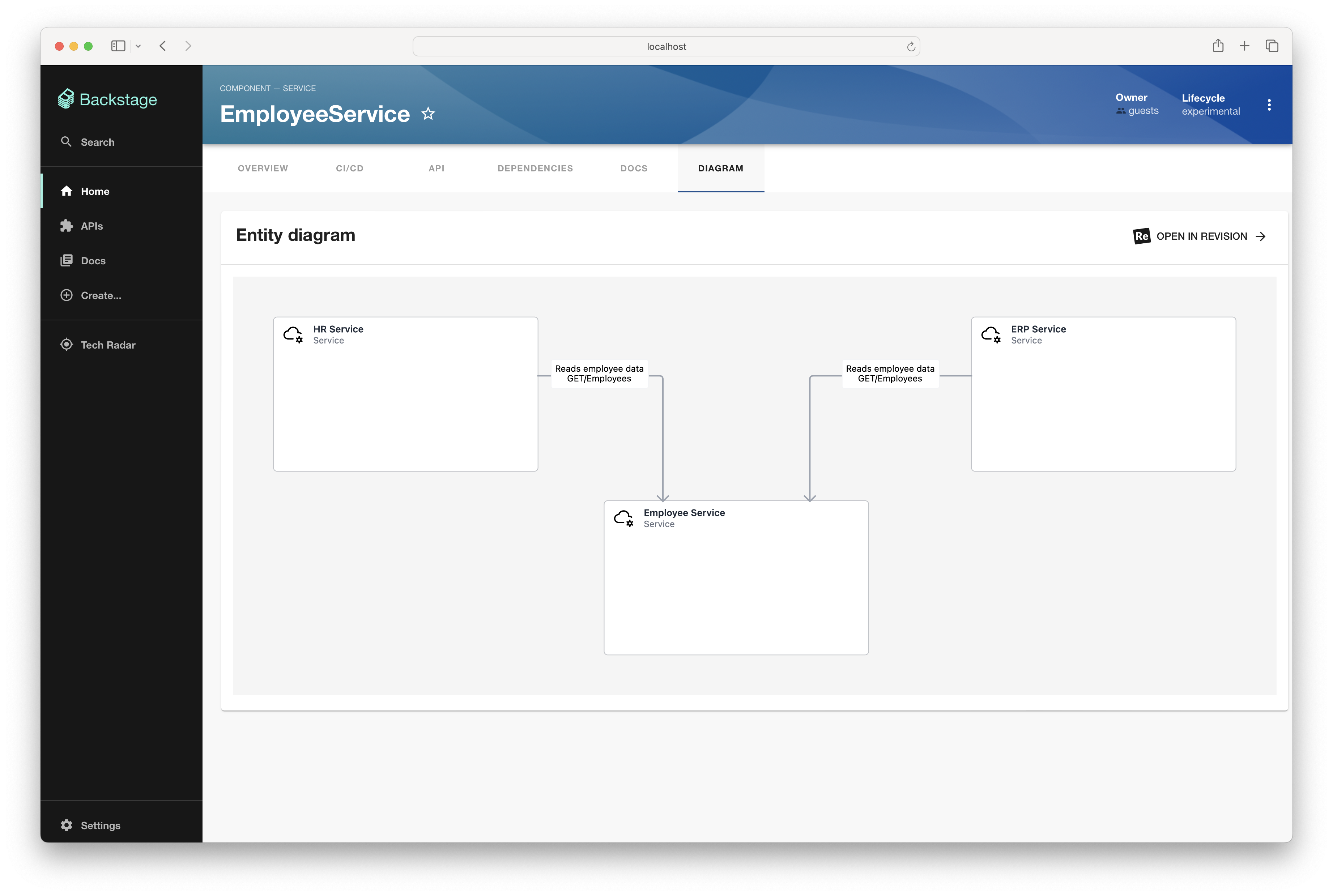
You can integrate Revision diagrams directly into your Backstage instances using our Backstage plugin.
Installation
-
First, install the Revision plugin:
# From your Backstage root directoryyarn add --cwd packages/app @revisionapp/backstage-revision-plugin -
Then, add the
EntityRevisionContentcomponent as anEntityLayoutroute on theEntityPage:// packages/app/src/components/catalog/EntityPage.tsximport { EntityRevisionContent } from "@revisionapp/backstage-revision-plugin";const serviceEntityPage = (<EntityLayout>// ...<EntityLayout.Route path="/revision-diagram" title="Diagram"><EntityRevisionContent /></EntityLayout.Route>// ...</EntityLayout>);
Configuration
-
Set up the necessary configuration, including both proxy settings and your Revision base URL in your app config:
# app-config.yamlproxy:endpoints:"/revision":target: https://<your-workspace>.revision.appheaders:Authorization: "Bearer ${REVISION_API_KEY}"revision:baseUrl: https://<your-workspace>.revision.app -
Set an Revision API key, which you can create on your account page in Revision, as an environmental variable called
REVISION_API_KEY.
Usage
-
Add a
revision.app/diagram-slugannotation to your catalog info file:# catalog-info.yamlapiVersion: backstage.io/v1alpha1kind: Componentmetadata:name: backstagedescription: |Backstage is an open-source developer portal that puts the developer experience first.annotations:revision.app/diagram-slug: YOUR_DIAGRAM_SLUG # e.g. TyY5fbQU9D3Sspec:type: libraryowner: CNCFlifecycle: experimentalThis is the slug that determines which diagram should be shown. You can find it in the diagram's URL, or using the Revision API.